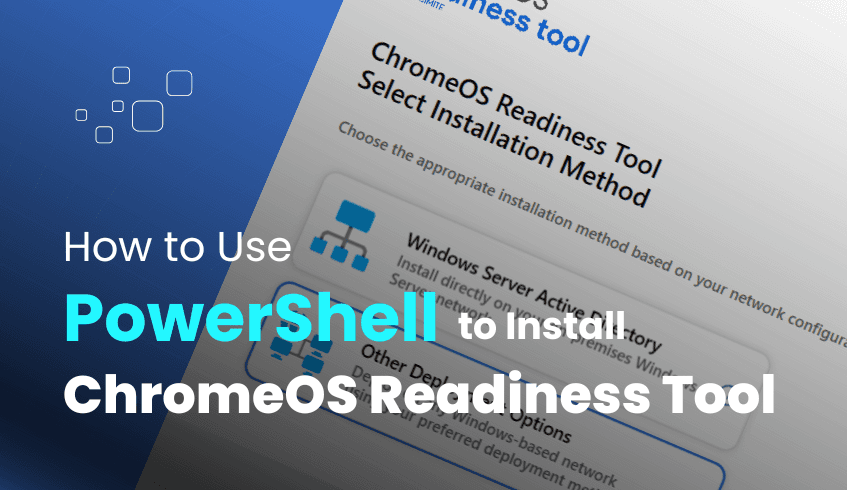
Getting Started: A Practical Guide to Installing and Deploying the ChromeOS Readiness Tool with PowerShell
In today’s growing IT Environment, cloud-first strategies are becoming the norm for organizations aiming to modernize IT operations. The ChromeOS Readiness Tool supports this transformation by helping IT teams assess compatibility for a seamless move to ChromeOS. For organizations that rely on Unified Endpoint Management (UEM) rather than Active Directory, the PowerShell Flow offers a lightweight, cloud-optimized deployment method.
Here’s a practical overview of how to install and deploy the tool using the PowerShell method.
What is the PowerShell Flow?
The PowerShell Flow, also known as PowerShell Installation, is purpose built for
Organizations using UEM software to install applications across the network
Environments that do not utilize Active Directory
IT teams seeking a flexible agent deployment
Step by Step Installation: PowerShell Method
1. Download & Launch
Begin by downloading the official MSI installer for the ChromeOS Readiness Tool from the ChromeOS Readiness Tool website. Launch the installer on an administrator’s device and complete the guided setup.
2. Configure Settings via Installer
Once the tool launches:
Select PowerShell Flow as your deployment method by clicking on the “Other Deployment Methods” option.
Sign in with a Google account, this will be used to access your web dashboard later.
Enter organization details, including your company name, address, and logo (optional).
3. Storage Configuration
PowerShell Flow supports only Google Cloud Storage (GCP Storage Buckets).
Network Shared Folders are not available for this method.
You must assign the storage.objectAdmin role to the tool’s service account to your GCP storage bucket.
4. Set Collection Preferences
Define the data collection period (in days).
Enable Browser Insights, if desired.
Choose whether to hide the tray application on employee devices.
5. Deploy via UEM or Script
Export the deployment package at the end of the configuration flow, which will be used to deploy to client machines.
Deploy the deployment package manually or through your UEM system.
Most importantly, export the private key and keep it securely, which will be used later to access the web dashboard.
No user action is required on employee devices post-deployment.
Security-First Architecture
Data collection is designed with privacy and security in mind:
Only the administrator who deployed the tool and possesses the generated private key can access the collected data.
All encrypted logs remain within your organization’s infrastructure until securely uploaded to GCP.
Dashboard Access and Insights
After data collection is complete, results are visualized on an interactive web-based dashboard:
Pro Dashboard (Included by default):
View overall domain and device readiness
Identify top used apps (foreground & background)
Access browser usage insights
Evaluate application compatibility and virtualization needs
Partner Dashboard (for CSPs):
Allows partners to view multiple customer organizations and their detailed results per client using encryption keys
Top Benefits of the PowerShell Flow
Cloud-optimized for UEM-managed environments
Enterprise-grade encryption and data security
Manual control over deployment
Rich analytics and app usage breakdowns
No need for an Active Directory or GPOs
Conclusion
For cloud-first organizations using UEM platforms, the PowerShell Flow delivers an efficient, secure, and scalable path to ChromeOS migration. With detailed readiness insights and streamlined deployment, it equips IT leaders to drive modernization with confidence.Ready to begin?Visit the official ChromeOS Readiness Tool page to schedule a demo and explore the PowerShell deployment path best suited to your infrastructure.