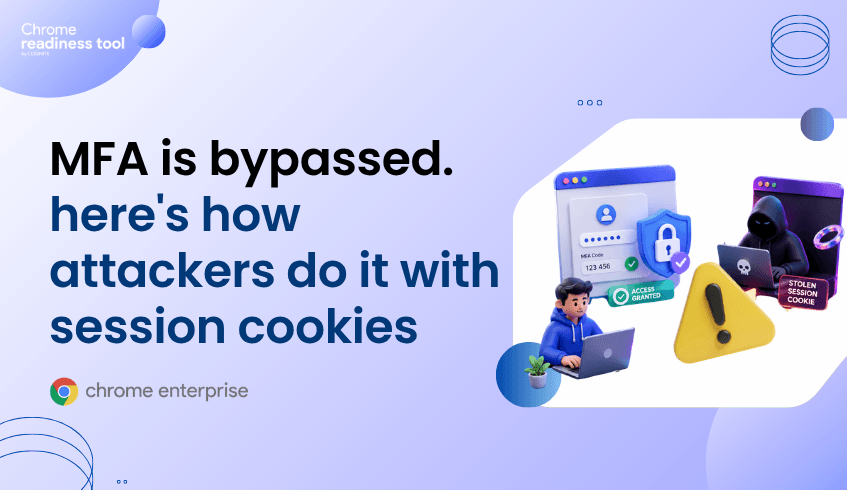
MFA Stops Login Abuse. It Does Not Always Stop Session Theft.
Multi-factor authentication has become one of the most important controls in enterprise security. It reduces the risk of password-based compromise and makes it much harder for attackers to access applications using stolen credentials alone.
But MFA protects the authentication moment. It does not automatically protect every authenticated session that follows.
Once a user successfully signs in, the browser receives session cookies or session tokens that keep the user logged in across web applications. These tokens tell the application, “this user has already been authenticated.” If an attacker steals that session cookie, they may be able to impersonate the user without needing the password, the MFA code, or the user’s device.
This is why session cookie theft has become such a dangerous browser-layer threat. The attacker is not always trying to break MFA. They are trying to go around it.
How Attackers Bypass MFA With Session Cookies
Session cookie attacks usually begin after authentication has already happened. The user signs in normally, completes MFA, and receives a valid browser session. From that point onward, attackers target the session itself.
Common attack paths include:
Infostealer malware on the endpoint that extracts browser cookies and session data.
Malicious or unverified extensions that gain access to browser activity or sensitive session context.
Phishing pages and attacker-controlled domains that redirect users into credential or token theft workflows.
Outdated browsers that lack the latest protections against session theft and cookie abuse.
Long-running authenticated sessions where users remain logged in without frequent re-verification.
The key problem is that many enterprise controls still focus heavily on login events. But session theft happens inside the browser after the login event is complete.
That makes the browser a critical security boundary.
Why Traditional MFA-Centric Security Falls Short
MFA is still essential. The problem is assuming that MFA alone is enough.
In a session theft scenario, the attacker does not need to defeat the MFA prompt directly. They only need to steal the post-authentication token that the browser uses to maintain access. Once that token is replayed, the application may treat the attacker as the already-authenticated user.
This creates a visibility and enforcement gap. Identity systems can confirm that MFA was completed, but they may not always know whether the session token is still being used by the legitimate browser, on the legitimate device, under the right conditions.
For enterprises, this means browser posture matters just as much as identity posture. A user may have strong authentication, but if their browser is outdated, exposed to risky extensions, or accessing unsafe domains, the session remains vulnerable.
Chrome Enterprise Premium: Protecting the Browser Session
Chrome Enterprise Premium helps address this gap by bringing security controls closer to where session activity actually happens: the browser.
Chrome Enterprise Premium is a secure enterprise browsing solution that provides advanced, integrated security directly within the browser, including centralized management, threat and data protection, and Zero Trust access controls for web applications.
For session cookie risk, this matters because the browser is where authenticated sessions live. Chrome Enterprise Premium helps organizations strengthen browser-layer protection through capabilities such as malware and phishing protection, URL filtering, data protection controls, and access controls that reduce exposure across web and SaaS applications. Google’s product documentation describes Chrome Enterprise Premium as enhancing Chrome’s built-in enterprise security with configurable data loss prevention, threat protection, and secure enterprise browsing controls.
This is especially important when attackers use phishing, malicious domains, malware, or unsafe browser activity as the path to session theft. Chrome Enterprise Premium helps enforce protection at the point of browsing, instead of relying only on identity checks that already happened earlier in the session.
From Readiness Tool: Understanding Session Risk Across the Browser Fleet
Browser Insights, the Chrome Readiness Tool, gives security teams device-level visibility into browser risk before incidents occur.
Based on the current Browser Insights structure, the tool surfaces browser and extension details across Chrome, Edge, Firefox, Vivaldi, Brave, and Opera. This includes browser name, browser version, and all installed extensions.
For MFA bypass and session cookie theft, the most relevant signal is session theft vulnerability based on browser version. Outdated browsers are flagged as not protected, while current versions are confirmed as protected.
Browser Insights also shows the presence of unverified extensions, which is important because risky extensions can increase browser-layer exposure. A device is considered secure within Browser Insights when it has no unverified extensions and no access to restricted or non-HTTPS domains. The tool also supports device-level drill-down, allowing security teams to investigate specific machines where browser risk is elevated.
This makes the Chrome Readiness Tool valuable as a visibility layer. It helps security teams identify which devices, browsers, and extensions may increase the risk of session theft before attackers exploit that weakness.
Where CEP Accelerator Adds Value
CEP Accelerator turns Browser Insights findings into a prioritized Chrome Enterprise Premium deployment plan.
It does not enforce policies or detect attacks directly. Instead, it acts as a planning and visibility layer inside Browser Insights. It maps observed risks to the relevant CEP capabilities that can address them.
For MFA bypass through session cookies, this means security teams can connect findings such as outdated browser versions or unverified extensions to the CEP controls that help reduce session theft and unauthorized access risk. CEP Accelerator helps teams decide where to act first, instead of treating every browser issue as equal.
Closing the MFA Gap Starts in the Browser
MFA remains a critical defense, but it is not the final boundary. Once a session is created, attackers shift their focus from stealing passwords to stealing browser session tokens.
That makes browser visibility and browser enforcement essential.
Browser Insights helps identify where session-related risk exists across the enterprise browser fleet. Chrome Enterprise Premium provides the enforcement layer needed to strengthen browser security against phishing, malware, unsafe access, and data exposure. CEP Accelerator connects the two by helping security teams prioritize the right actions based on observed risk.
To reduce MFA bypass risk, start by finding the vulnerable browsers, outdated versions, and unverified extensions across your environment. Then use Chrome Enterprise Premium to bring protection closer to the session itself.